I have a Sandisk Cruzer Micro USB thumb drive that I carry around with me. Last weekend I spent a bit of time setting it so that all my data is securely encrypted using the excellent open source software called
TrueCrypt. I also managed to get Windows autoplay working on the drive so I can access the data with the least amount of annoyance. Actually it's about as easy as it's ever going to get. I stick my drive in, an autoplay menu pops up with "Mount Truecrypt Volume" as the default choice, I hit enter, type my password, hit enter again and that's it. Here's how I did it.
Requirements
- TrueCrypt. Download here.
- Windows XP with Service Pack 2. Prior to SP2 you couldn't do autoplay on removable drives. You can do everything else described here though.
- A USB thumb drive. No special requirements. Any old one will do.
TrueCrypt files
- Move all your data off your usb drive so it's empty.
- Install TrueCrypt on your PC.
- From the TrueCrypt application directory (usually C:\Program Files\TrueCrypt\) copy TrueCrypt.exe to your usb drive.
- From your Windows drivers directory (probably C:\Windows\system32\drivers\) copy truecrypt.sys to your usb drive.
Note: The TrueCrypt download is a zip file. Inside the zip file is
a folder called Setup Files that contains both TrueCrypt.exe and truescrypt.sys
so it's possible to skip steps 2, 3 and 4 above and just copy the two files
straight from that folder to your flash drive.
Autorun file
Creating the encrypted volume
- Run TrueCrypt from your start menu and click "Create Volume".
Note: If you didn't bother to install TrueCrypt in step 2, you can just double click TrueCrypt Format.exe in the Setup Files folder.
- Choose "Create a standard TrueCrypt volume" (the default).
- Type L:\data.tc at "Volume Location" where L is the drive letter of your flash drive.
- Choose your favourite encryption algorithm. (Don't ask me!)
- Select a volume size. This is how much space you will have on your encrypted volume.
I like to make it fill the entire remaining space on the thumb drive. You make it fill it exactly by doing this:
- Get the free space in bytes of your flash drive by right clicking it in My Computer and clicking "Properties".
- Divide this number by 1024 to get kilobytes.
- Back in TrueCrypt, select KB and type the number.
- Make up a password and enter it. Remember your password because there is no way to crack it. That's the point of secure encryption.
- Wiggle your mouse a bit for extra randomness, then click "Format".
- When formatting is finished click "Exit" to exit.
- This concludes the setup process. The hard part is now over!
Usage
- Remove your thumb drive in the usual way. (Click the "Safely Remove Hardware" icon in your Systray, select the drive to remove, then yank it out).
- Put it back in again. If the autoplay stuff is working you should see this:
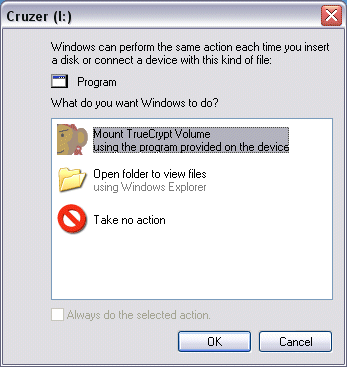
- Click OK. You should then see this:
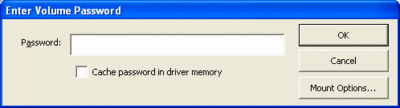
- Enter your password and up comes your encrypted drive. Voila!
- You can now put all your files back on it. They are now securely encrypted and can't be accessed without your password.
- To dismount
- Go to My Computer. Right click on your flash drive icon.
- Notice the menu options include Mount, Autoplay, Dismount and Run TrueCrypt.
- Choose Dismount to dismount the volume.
- Other notes
- Note that to open your flash drive now you have to right click and choose Open because a double click will run the Mount shell extension.
- You can also mount and dismount and change your password from the TrueCrypt program on your thumb drive. Read the TrueCrypt manual for more information.
Note: If you come to a PC where your chosen drive letter is already taken you can run TrueCrypt manually and mount your drive with a different drive letter.
- You can backup all your secure data just by copying your data.tc to your C: drive.
- I recommend adding a shortcut (to your real drive, not the virtual one) to your Quick Launch Bar for convenience. You can then access the right click menu from the shortcut.
Update 4-Nov-2005
Since I wrote this version 4.0 of TrueCrypt has been released with a whole load of great new features and improvements. As yet I have not tested the new version with the above procedure, but it should work.
Update 7-Feb-2006
Here are a couple of notes from commenters below. You have to have Adminstrator privilege on the Windows XP to mount. This probably prevents you accessing your data in internet cafes and student labs. When I wrote this I hadn't discovered the "Traveller Mode" section in the TrueCrypt manual. Read that to see how TrueCrypt can set most of this stuff up for you automatically!
Update 16-Feb-2006
Remora USB Disk Guard might be worth trying. It doesn't require that you have Administrator privilege. Found it
here.
Update 28-Feb-2006
This article was recently featured at
MakeZine. Welcome MakeZine readers! Also made it to del.icio.us popular.
Update 27-Apr-2006
I have upgraded to TrueCrypt 4.2 and everything still works except that:
- There is now a second .sys file you should probably include called truecrypt-x64.sys
- TrueCrypt now wants to store some data in Configuration.xml on your thumb drive so you should leave a little bit of space on the drive instead of filling it exactly as described above. (The xml file is about 4kb but I decided to leave an extra 1MB of free space to be sure).
Update 15-June-2006
I gave
Remora USB File Guard a try. I'm not saying it's bad product but from a useability perspective it doesn't compare to using TrueCrypt as described above. Here's what you do to edit your "secure" data using this product. Insert your thumb drive and open it up the root folder. Double click the remora exe file. Type your password. You get a winzip style of application window. Click on your file. Click export. Choose where you want to export to. Now it decrypts the file and puts it in the folder of your choice. (By the way now your data it is completely in the clear). When your done with it you then go back to remora and import it back. Then make sure you delete it from where ever it was. (Actually maybe there is an import and delete function, I didn't hang around long enough to find out). The inconvenience of this process is enough to render it useless to me. I'd rather leave my bank details unencrypted than go through that every time I needed them. In comparison the TrueCrypt solution encrypts your data on the fly. Once it's mounted you have a fully secure virtual drive. Use it like a drive. Dismount when you're done.
Update 26-July-2006
Someone asked about removing this once it's installed. It's quite simple. Here's what to do:
- Mount your encrypted drive
- Copy your stuff off it to your C: drive or whatever
- Dismount your encrypted drive
- Delete everything from your thumb drive (ie the truecrypt files and your data.tc file)
- Copy your stuff back to your thumb drive
 I have a Sandisk Cruzer Micro USB thumb drive that I carry around with me. Last weekend I spent a bit of time setting it so that all my data is securely encrypted using the excellent open source software called TrueCrypt. I also managed to get Windows autoplay working on the drive so I can access the data with the least amount of annoyance. Actually it's about as easy as it's ever going to get. I stick my drive in, an autoplay menu pops up with "Mount Truecrypt Volume" as the default choice, I hit enter, type my password, hit enter again and that's it. Here's how I did it.
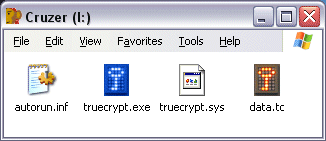 ...except for the file
data.tc. That's the file that will contain all your encrypted files that we
will create next.
...except for the file
data.tc. That's the file that will contain all your encrypted files that we
will create next.